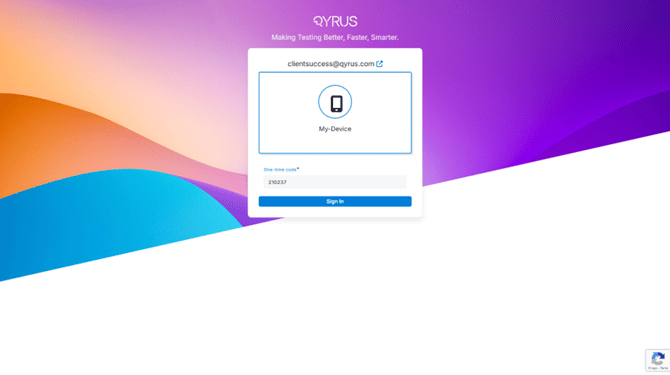
Password Reset
- Open Qyrus in your browser
- Click on Forgot Password
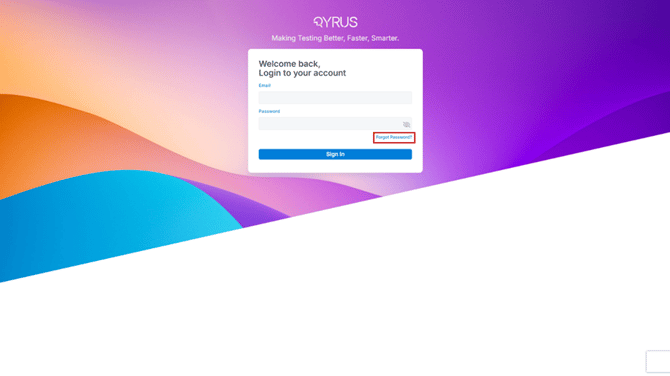
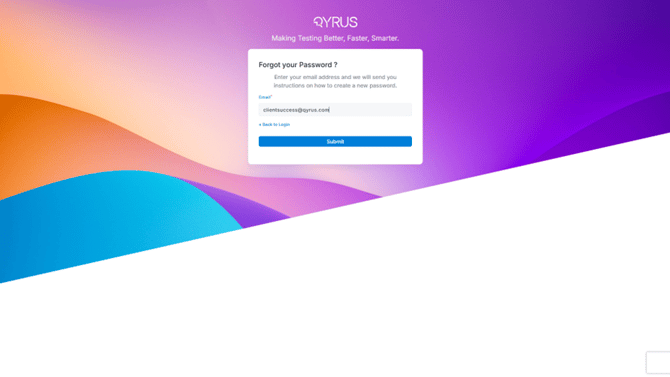
- Enter your log on Email
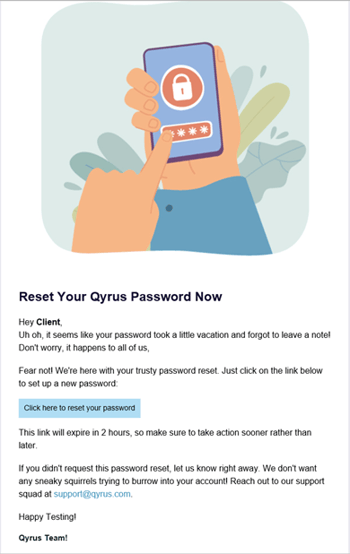
- You will receive an email from “account-activation@qyrus.com” with the subject – “Qyrus Reset Password Email”
- Click on “Click here to reset your password”
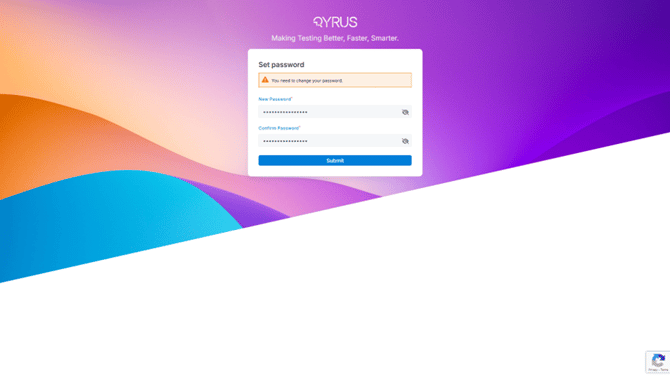
- A new browser window will open. Enter your new password.
MFA Setup
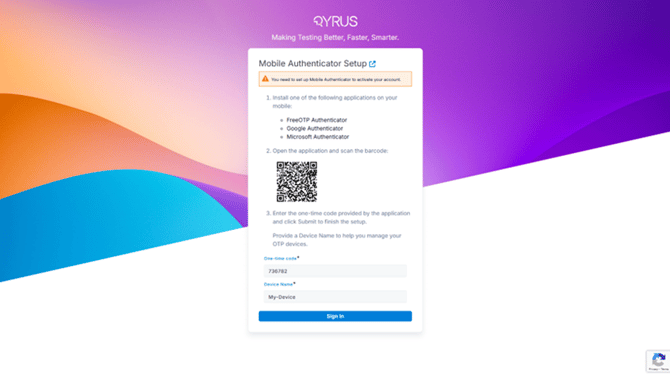
- Once you login to Qyrus using your credentials, you will be prompted to set up an MFA application.
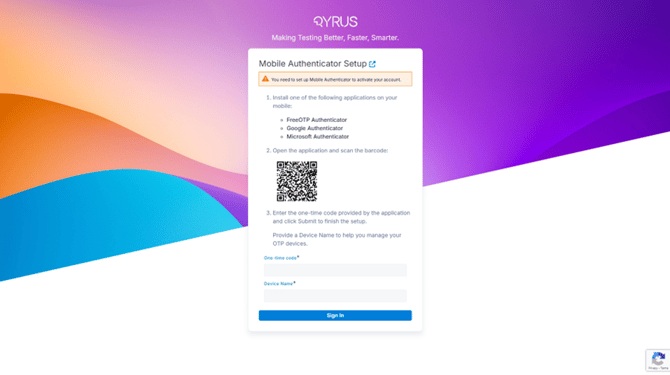
- Download any authenticator application on your mobile device from the Google PlayStore or iOS AppStore. The example shows Microsoft Authenticator, but you can use other TOTP applications available.
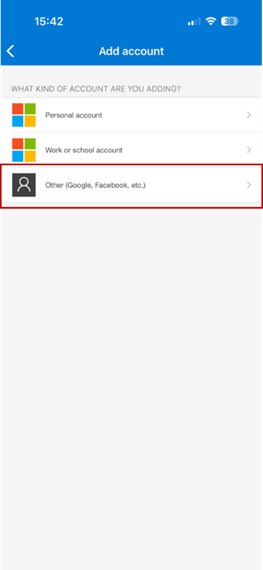
- Click on Add Account and select Other.
- Scan the QR shown on the browser using your mobile device
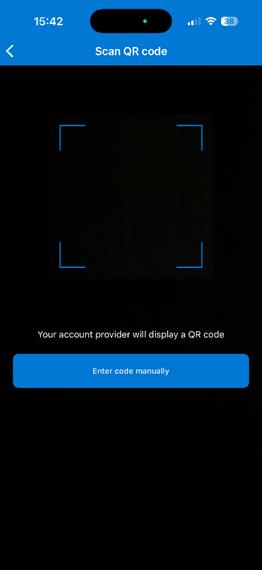
- A One-time passcode will be displayed on your mobile device
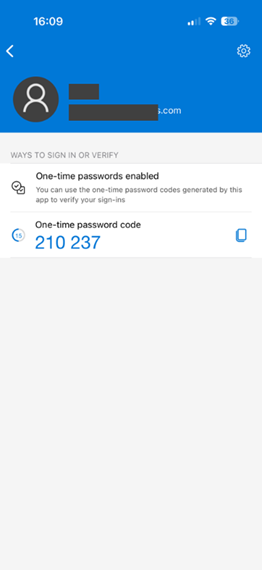
- Enter the code and enter a name on Qyrus window in the browser
- Enter the code generated by the authenticator application on the mobile device every time you log in