
Qyrus access is restricted to approved (whitelisted) IP addresses and traffic from all other origin is blocked.
IP ranges must be communicated in advance to avoid disruption to access or delays in whitelisting updates. Before the change takes effect, share the new static public IP address or CIDR range with the relevant team so the whitelist can be reviewed and updated accordingly.
Avoid using dynamic or home ISP IP addresses for whitelisting, as these IPs can change without notice and may cause unexpected access issues.
Always use a static, organization-managed public IP address or CIDR range provided by your IT team to ensure reliable and uninterrupted access.
- Connect to your corporate VPN, proxy, or office network.
- Open https://ipinfo.io/what-is-my-ip in your browser.
- Record the displayed public IP
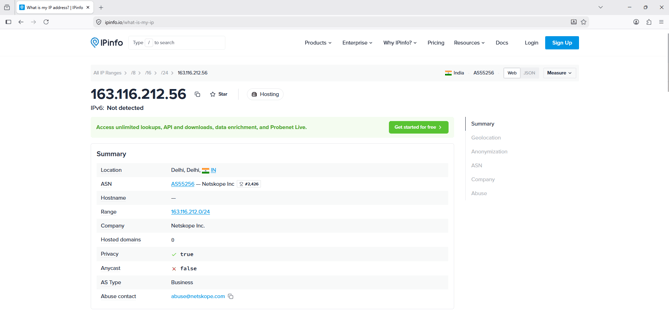
- Verify with IT that it belongs to the organization's static range.
- NAT Gateway / Firewall IP
- VPN Egress IP
- Submit the CIDR range (preferred) for whitelisting. Below are the accepted formats:
Format Example Single IP 203.0.113.10/32 CIDR Range 198.51.100.0/24 Multiple IPs List of entries
Important: Understanding Public vs Private IP
- A public IP is internet-routable and visible externally and are valid for Qyrus whitelisting.
Example
-
52.12.10.15
- 192.51.100.25
- 203.0.113.0/24
- A private IP exists only inside an internal/local network and is not visible on the internet. These IPs cannot be whitelisted for Qyrus access as these addresses are not visible directly.
Example:
- 10.x.x.x
- 172.16.x.x - 172.31.x.x
- 192.168.x.x